
Learning how to play PlayStation doesn’t have to feel overwhelming. Whether someone just unboxed a PS5, picked up a used PS4, or received a console as a gift, this guide covers everything needed to start gaming. From initial setup to finding great games, new players will be ready to immerse within minutes. The PlayStation ecosystem offers incredible gaming experiences, but first-time users need to understand a few basics. This beginner’s guide breaks down each step clearly, so anyone can go from opening the box to playing their first game with confidence.
Table of Contents
ToggleKey Takeaways
- Setting up a PlayStation console takes about 15 minutes, including connecting cables, pairing the controller, and creating a free PlayStation Network account.
- The PlayStation home screen uses a card-based layout where you can access games, settings, notifications, and your full Game Library for easy navigation.
- PlayStation Plus subscription is only required for online multiplayer—single-player games and free-to-play titles like Fortnite work without it.
- New players can build their game library through the PlayStation Store, physical discs, or free-to-play games like Apex Legends and Rocket League.
- Use Rest Mode for daily use to keep controllers charged and download updates automatically while the console sleeps.
- Manage storage by deleting finished games and adding external drives, since modern PlayStation games can exceed 100GB each.
Setting Up Your PlayStation Console
Setting up a PlayStation console takes about 15 minutes. Here’s what new owners need to do:
Physical Setup
First, unbox the console and lay out all components. The box includes the console itself, a DualSense controller (or DualShock 4 for PS4), an HDMI cable, a power cable, and a USB charging cable. Place the PlayStation on a flat, well-ventilated surface. The console can sit horizontally or vertically, just make sure air vents aren’t blocked.
Connect the HDMI cable from the console to the TV. Plug in the power cable. Press the power button on the console or controller to turn it on.
Initial Software Setup
The PlayStation will guide users through initial setup screens. They’ll select their language, connect to Wi-Fi, and set their time zone. The console may download a system update, this can take 10-30 minutes depending on internet speed.
During setup, the system asks users to create or sign into a PlayStation Network account. This step is essential for downloading games, accessing online features, and saving progress to the cloud. Users can create a free account with an email address.
Controller Pairing
The included controller pairs automatically when connected via USB during first boot. To pair additional controllers, go to Settings > Accessories > Bluetooth Accessories and put the new controller in pairing mode by holding the PlayStation button and Share button simultaneously.
Navigating the PlayStation Interface
The PlayStation interface uses a clean, card-based design that organizes content into easy sections. Understanding this layout helps players find what they need quickly.
The Home Screen
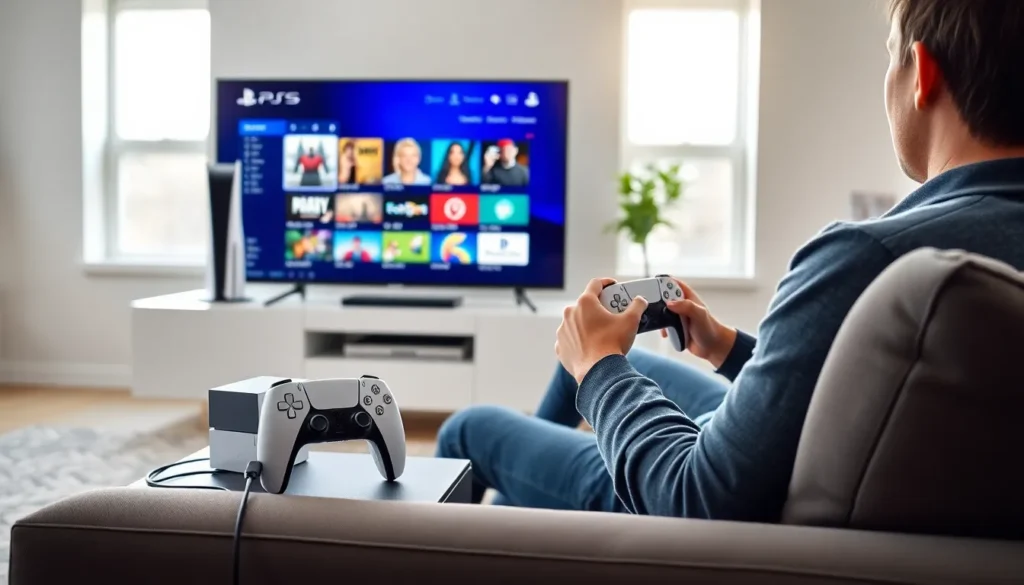
The PS5 home screen displays recently played games and apps in a horizontal row. Above this sits the Control Center, accessible by pressing the PlayStation button. The Control Center shows notifications, downloads, friends online, and quick settings.
PS4 users see a similar horizontal layout with games, apps, and folders arranged in a row. The top menu bar provides access to notifications, friends, trophies, and settings.
Key Menu Sections
The Settings menu controls everything from display output to parental controls. Players access it through the gear icon in the top-right corner. Important settings include:
- Sound: Adjust audio output and controller speaker volume
- Screen and Video: Set resolution, HDR, and performance modes
- Network: Manage Wi-Fi and test connection speeds
- Storage: See how much space remains and delete unwanted content
Game Library
The Game Library stores all purchased and downloaded PlayStation games. Even if a game gets deleted from the console, it remains in the library for re-download. Players can sort games by name, purchase date, or size. This feature helps users manage their growing collection as they learn how to play PlayStation games across different genres.
Understanding PlayStation Network and Online Features
PlayStation Network (PSN) powers the online experience. Every PlayStation user should understand what it offers.
Free PSN Features
A basic PSN account costs nothing and provides:
- Access to the PlayStation Store
- Friend lists and messaging
- Cloud saves for PS5 games (PS4 requires PS Plus)
- Free-to-play games without subscription
- Trophy tracking and profiles
PlayStation Plus Subscription
PS Plus unlocks online multiplayer for most games. It also includes monthly free games, exclusive discounts, and cloud storage for game saves. Three tiers exist:
- Essential: Online multiplayer and monthly games
- Extra: Adds a catalog of hundreds of downloadable games
- Premium: Includes game streaming and classic PlayStation titles
New PlayStation owners often wonder if they need PS Plus immediately. For single-player games, they don’t. But anyone wanting to play online multiplayer, like Call of Duty, FIFA, or Fortnite (which is actually free-to-play online), should consider subscribing.
Adding Friends
Players add friends by searching their PSN ID or scanning a QR code. Once connected, friends can see each other’s online status, join game sessions, and send party invitations. Voice chat happens through the PlayStation’s built-in party system, no third-party apps required.
Finding and Playing Games
Games make the PlayStation experience. New owners have several ways to build their library.
PlayStation Store
The digital storefront sells games, DLC, and add-ons. Users browse by category, check weekly sales, and purchase games that download directly to the console. The store accepts credit cards, PayPal, and PlayStation Store gift cards.
Digital games offer convenience, no disc swapping, and games are always available in the library. But, they can’t be resold or lent to friends.
Physical Discs
Players with disc-compatible consoles can buy physical games from retailers. Insert the disc, wait for installation, and play. Physical games often go on sale faster than digital versions and can be traded or sold later.
Free-to-Play Options
Several popular PlayStation games cost nothing to download:
- Fortnite
- Apex Legends
- Rocket League
- Genshin Impact
- Call of Duty: Warzone
These games use optional in-game purchases but provide full gameplay for free.
Starting a Game
To play, select a game from the home screen and press X. Most games offer difficulty settings, new players should start on Normal or Easy to learn mechanics. Each PlayStation game saves progress automatically or through manual save points.
Essential Tips for New PlayStation Players
These tips help beginners get more from their PlayStation experience.
Keep the System Updated
Sony releases regular system updates that add features and improve security. Enable automatic updates in Settings so the console stays current without manual intervention.
Use Rest Mode
Rest Mode puts the PlayStation in a low-power state while charging controllers and downloading updates. It’s better than fully powering off for daily use. Games can even continue downloading while the console sleeps.
Manage Storage Space
Modern games are huge, some exceed 100GB. Players should regularly delete games they’ve finished. External USB drives can expand storage on both PS4 and PS5, though PS5 users need an NVMe SSD for storing PS5 games externally.
Learn Controller Shortcuts
The PlayStation button opens the Control Center. Holding it returns to the home screen. Double-tapping switches between the two most recent apps. The touchpad on DualSense and DualShock controllers often serves as an additional button or opens in-game maps.
Set Up Parental Controls
Families should configure parental controls before handing the controller to kids. These settings limit playtime, restrict mature content, and control online interactions. Access them through Settings > Family and Parental Controls.
Capture Screenshots and Video
The Create button (or Share button on PS4) saves screenshots and records gameplay clips. Players can share these directly to social media or save them to USB storage. It’s a great way to capture memorable gaming moments.